How to Install PS2 BIOS on Every Platform (PCSX2, Android, Steam Deck, RetroArch, EmuDeck)
You spent time setting up PCSX2 or AetherSX2. You grabbed the game ISO. You hit play. And then you get it, a blank screen, or that exact message: “No BIOS file found.”
Nothing is broken. Your emulator is fine. Your game file is fine. You are just missing one file that sits between you and hundreds of PlayStation 2 classics. That file is the PS2 BIOS, and placing it in the right folder takes less than five minutes once you know exactly what to do.
That is what this guide covers. Every platform. Every emulator. Every folder path. No vague instructions, no steps that assume you already know where things go.
If you have not yet downloaded your BIOS file, grab it first from our PS2 BIOS download page, then come straight back here.
Not sure which version to pick? Read our Which PS2 BIOS to Use guide for a quick answer before you start.
Before You Start: What You Actually Need
Every platform in this guide needs the same three things before anything works:
What You Need | Details |
PS2 BIOS file | A .bin file dumped from a real PS2 console. Approximately 4 MB per regional version. |
Extraction tool | 7-Zip (Windows/Linux), The Unarchiver (macOS), ZArchiver (Android) |
The correct emulator | PCSX2, AetherSX2, RetroArch, or EmuDeck depending on your platform |
One thing that stops people before they start: the BIOS file must be fully extracted from its ZIP or 7z archive. Every emulator on every platform reads the raw .bin file directly. A zipped BIOS will not be detected, no matter which folder you drop it into.
Extract first. Always.
How to Install PS2 BIOS on PCSX2 (Windows, macOS, Linux)
PCSX2 is the main PS2 emulator for desktop systems. Download the latest version from the official site at ps2bios-download.com before following these steps.
There are two ways to add the BIOS file to PCSX2. Both work. Method 1 is for first-time setup during the initial wizard. Method 2 works anytime after the emulator is already running. If you are using the industry-standard PC emulator, follow the specific steps on how to update PS2 BIOS for PCSX2.
Method 1: During First Launch (Setup Wizard)
This is the cleanest way to go about things if you are installing PCSX2 for the first time.
- Start PCSX2. The setup wizard will automatically start on the first time.
- Choose your preferred language and click Next.
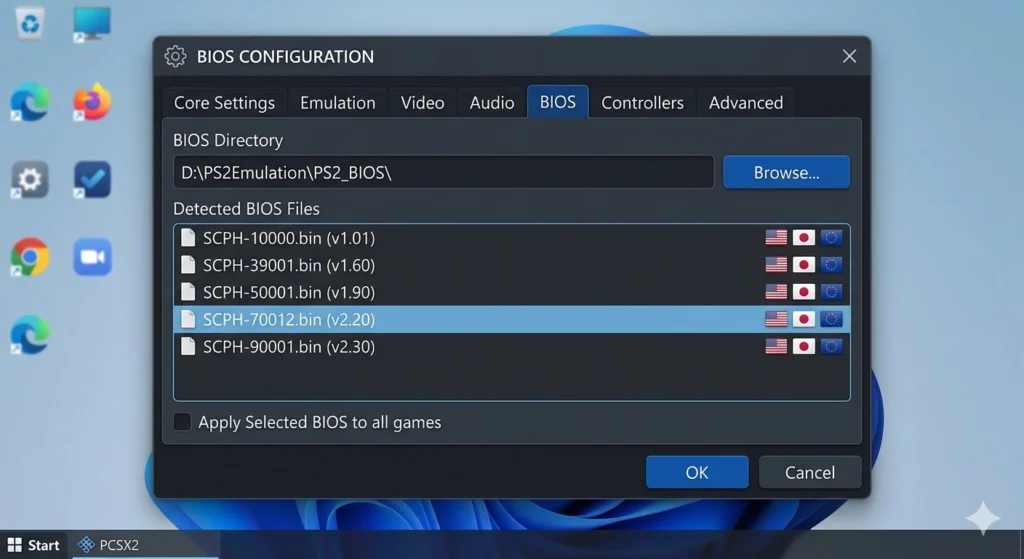
- The next page is the BIOS Directory page.
- Click on Browse, select the folder where your extracted .bin BIOS file is located, and click OK.
- PCSX2 will automatically detect all the BIOS files located in the folder.
- If you downloaded the full regional pack, you will have all four BIOS versions listed.
- Choose the version of your liking (SCPH-39001 or SCPH-70012 for USA is recommended).
- Click Next and proceed through the rest of the wizard.
Method 2: Fast Boot vs. Full Boot
Once your BIOS is installed in PCSX2, you will see two boot options:
Fast Boot skips the PlayStation 2 startup animation and loads games directly. Use this for 90% of your games.
Full Boot plays the full PS2 startup sequence, including the memory card screen. Use this if a game shows a black screen on Fast Boot, or if you need to access the BIOS settings menu to change system language or date. Games like Final Fantasy X and certain early PS2 titles sometimes need Full Boot to behave correctly.
Switch between them any time under Settings > BIOS > Options and Patches.
Method 3: Through Settings After Launch
Use this method if PCSX2 is already set up and you need to add or change a BIOS file.
- Launch PCSX2.
- Go to Settings in the top menu.
- Click BIOS in the left panel.
- Click Browse next to the BIOS directory field.
- Navigate to the folder containing your extracted BIOS .bin file and select it.
- PCSX2 will scan the folder and list all detected versions.
- Click the version you want to use to highlight it.
- Click OK or Apply to save.
- Default BIOS folder on Windows: C:\Users[YourUsername]\Documents\PCSX2\bios
You can use any folder you want. What matters is pointing PCSX2 to wherever your extracted .bin file actually lives. Proper installation is the key to running the best PS2 games of all time with high-resolution textures and stable frame rates.
How to Install PS2 BIOS on Android (AetherSX2)
AetherSX2 is the leading PS2 emulator for Android. It is not available on the Google Play Store. Download it from Archive.org, GitHub, or a trusted source. Install the APK directly, enabling installation from unknown sources under Settings > Privacy and Security > Unknown Sources first if needed.
To learn how to install bios ps2 emulator android via AetherSX2:
- Open AetherSX2. The welcome screen launches on first run.
- Tap Next to advance past the welcome screen.
- Adjust any performance settings to match your device, then tap Next again.
- You will reach the BIOS import screen.
- Tap the “+” icon (add button).
- Your device’s file manager opens. Navigate to the folder where you saved your extracted .bin BIOS file.
- Select the file. It will appear in the BIOS list with the region name shown (e.g., USA NTSC-U).
- Tap Next to complete setup.
AetherSX2 is now ready to load PS2 game ISOs.
Already past the setup screen? You can add or change the BIOS file at any time:
- Open AetherSX2 and go to Settings.
- Scroll to Core Settings and tap BIOS.
- Tap Browse and locate your .bin file.
- Select it and confirm.
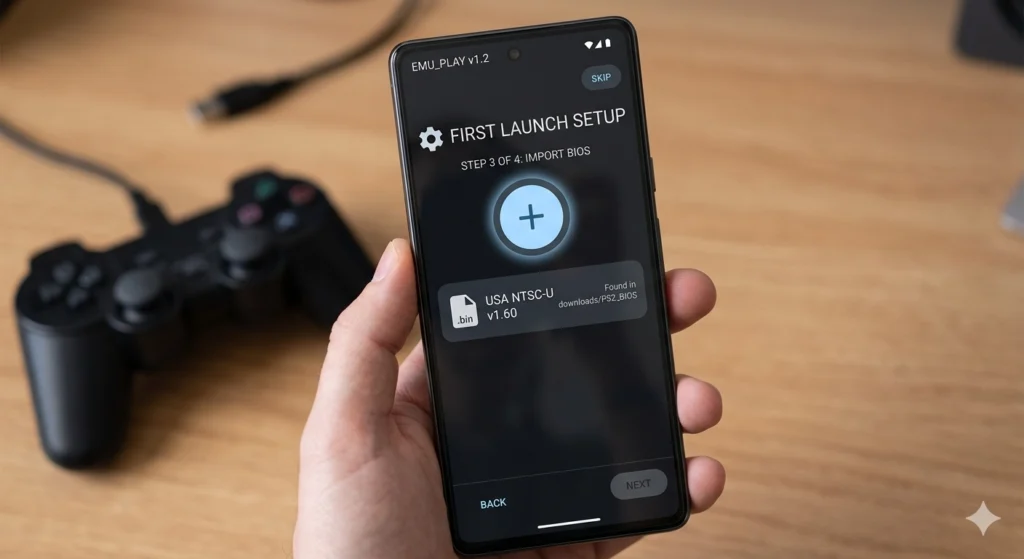
Recommended BIOS for Android: On most Android devices, SCPH-39001 (USA v1.60) delivers the best combination of compatibility and stability. Use the matching regional BIOS if you are playing Japanese or European exclusive titles.
How to Install BIOS PS2 Emulator Android (RetroArch)
RetroArch on Android uses a different folder structure than AetherSX2. The LRPS2 core (the PS2 core inside RetroArch) requires the BIOS file to be placed in a specific path inside the RetroArch system folder.
Step 1: Install RetroArch
Download RetroArch from the Google Play Store. Open it once, then close it completely. This first launch is important because it creates the required folder structure on your device.
Step 2: Extract and place your BIOS file
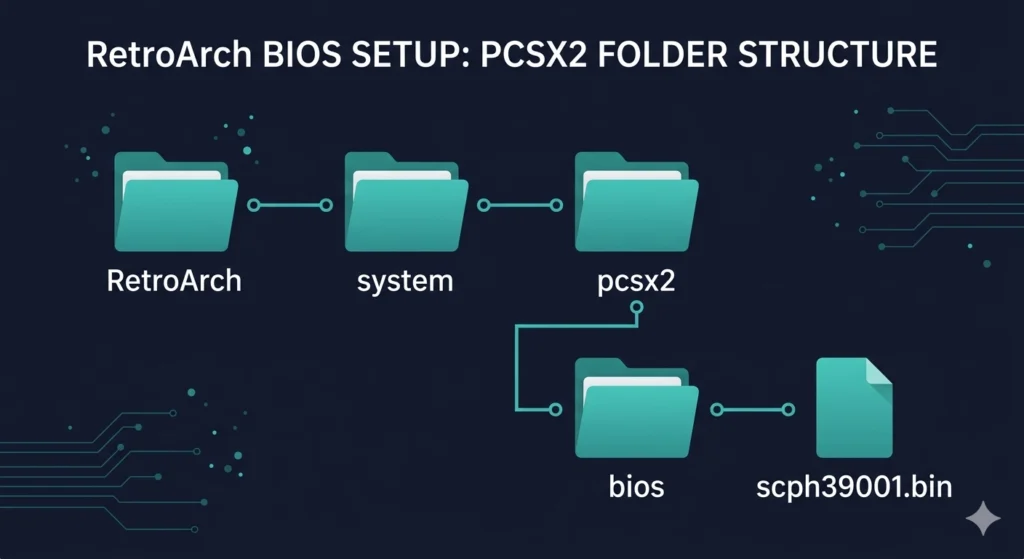
Use ZArchiver or Files by Google to navigate to your internal storage. The required path is: RetroArch/system/pcsx2/bios/ Create the pcsx2 folder inside the system if it does not exist yet. Then, create a bios folder inside pcsx2. Place your extracted .bin BIOS file inside the bios folder.
Note from official Libretro documentation: Both the pcsx2 and bios folder names must be lowercase. A case-sensitive mismatch will cause the core to miss the file entirely.
Step 3: Download the PS2 core
Open RetroArch. Go to Main Menu > Load Core > Download a Core. Enable Show Experimental Cores in Settings if the core does not appear. Search for and download Sony: PlayStation 2 (LRPS2).
Step 4: Load your game
Go to Main Menu > Load Content, navigate to your game ISO, and select the LRPS2 core when prompted.
Important: The LRPS2 core does not run on ARM hardware natively. This means it does not run on all Android devices. On Android devices, it only works well on powerful chipsets like the Snapdragon 8 Gen 2 and above. For mid-range Android phones, AetherSX2 performs better.
How to Install PS2 BIOS on Steam Deck (via EmuDeck)
Steam Deck uses the operating system known as SteamOS. EmuDeck is the application used to automatically configure PCSX2 and all emulators on the Steam Deck. The BIOS file must be installed after EmuDeck has been installed. Here is how to install the PS2 BIOS file:
Step 1: Switch to Desktop Mode. On your Steam Deck, hold the power button and select Switch to Desktop.
Step 2: Install EmuDeck Open a browser in Desktop Mode, go to emudeck.com, download the installer, and run it. EmuDeck will create all required folders automatically, including the BIOS folder.
Step 3: Locate the BIOS folder EmuDeck creates the following folder structure on your Steam Deck:
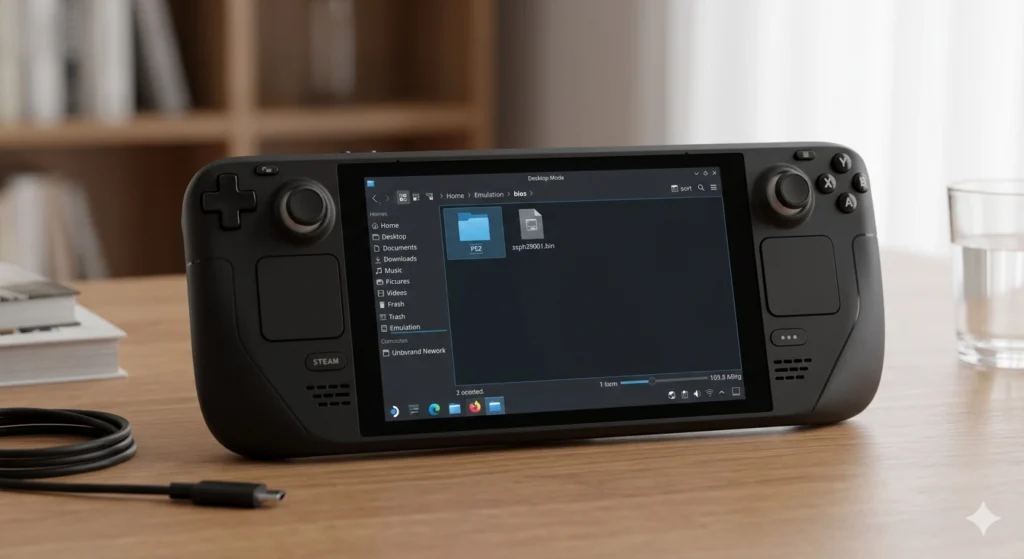
/home/deck/Emulation/bios/
This is where your PS2 BIOS file must go. You can navigate here using the Dolphin file manager. If hidden folders are not visible, click the hamburger menu in the top-right corner of Dolphin and select Show Hidden Files.
Step 4: Transfer and place your BIOS file Copy your extracted .bin BIOS file into the bios folder directly.
Critical rule from the official EmuDeck documentation: Place files directly inside the bios folder. Do not create any subfolder inside it — not a “PS2” folder, not a “pcsx2” folder, nothing. PCSX2 will not find the BIOS if it is inside a subfolder.
Step 5: Verify with EmuDeck’s BIOS Checker Open the EmuDeck application. Go to Tools and Stuff > BIOS Checker > Check Again. If your file is in the correct location, you will see: “PlayStation 2 BIOS detected.”
Step 6: Return to Gaming Mode Switch back to Gaming Mode. Your PS2 games in Steam ROM Manager will now launch correctly.
How to Install PS2 BIOS on EmuDeck (Windows)
EmuDeck is also available for Windows. The folder structure mirrors the Steam Deck version but uses Windows-style paths. Here is how to install PS2 BIOS on Emudeck for Windows users:
Step 1: Install EmuDeck for Windows
Download EmuDeck from emudeck.com and run the installer. Follow the setup prompts and choose your storage location (main drive or external drive).
Step 2: Find the BIOS folder
EmuDeck creates its folder structure at the path you selected during setup. The BIOS folder will be at: [Your chosen drive]\Emulation\bios\
Step 3: Place your extracted BIOS file
Drop your extracted .bin file directly into the bios folder. Follow the same critical rule as the Steam Deck version: no subfolders. Files go in the root of bios, nothing else.
Step 4: Confirm detection in PCSX2
Open PCSX2 through EmuDeck or directly. Go to Settings > BIOS. Your file should appear automatically. If it does not, click Browse, navigate to the *Emulation\bios* folder, and select it manually.
How to Install PS2 BIOS on RetroArch (PC)
The PC version of RetroArch requires the BIOS in a more specific folder structure than standalone PCSX2. Here is the exact process of how to install PS2 BIOS on RetroArch:
Step 1: Install RetroArch. Download RetroArch from retroarch.com and install it. On Steam, you can also download RetroArch directly from the Steam store.
Step 2: Confirm your system folder path. Open RetroArch and go to Settings > Directory > System / BIOS. Note the path shown here. This is your system folder. By default, it is usually:
[RetroArch installation folder]/system/
Step 3: Create the required subfolder structure. Inside the system folder, create a folder named exactly pcsx2 (lowercase). Inside pcsx2, create another folder named exactly bios (lowercase). Place your extracted .bin file inside the bios folder.
The complete path looks like this:
RetroArch/system/pcsx2/bios/[your_bios_file].bin
Step 4: Download the LRPS2 core Inside RetroArch, go to Main Menu > Load Core > Download a Core. Scroll down to Sony: PlayStation 2 (LRPS2) and download it. For the Steam version of RetroArch, you may need to download updated cores directly from buildbot.libretro.com and place the .dll file in the RetroArch/Cores folder manually.
Step 5: Load a game Go to Main Menu > Load Content, navigate to your PS2 game ISO, and select the LRPS2 core when prompted.
Note from official Libretro documentation: The LRPS2 core does not work on ARM-based Windows devices. It requires x86_64 architecture. On macOS with Apple Silicon, it runs through Rosetta 2 compatibility mode.
Quick Reference: Correct BIOS Folder Paths by Platform
Platform | Emulator | Required BIOS Path |
Windows (standalone) | PCSX2 | C:\Users[Name]\Documents\PCSX2\bios\ (or any custom folder) |
Windows (EmuDeck) | PCSX2 via EmuDeck | [Drive]\Emulation\bios\ (root of bios, no subfolders) |
Windows (RetroArch) | LRPS2 core | RetroArch\system\pcsx2\bios\ |
macOS | PCSX2 | ~/Library/Application Support/PCSX2/bios/ |
Linux | PCSX2 | ~/.config/PCSX2/bios/ |
Steam Deck (EmuDeck) | PCSX2 via EmuDeck | /home/deck/Emulation/bios/ (root of bios, no subfolders) |
Steam Deck (RetroArch) | LRPS2 core | /home/deck/.var/app/org.libretro.RetroArch/config/retroarch/system/pcsx2/bios/ |
Android (AetherSX2) | AetherSX2 | Any folder — selected manually via file browser during setup |
Android (RetroArch) | LRPS2 core | RetroArch/system/pcsx2/bios/ |
Common Installation Errors and Exact Fixes
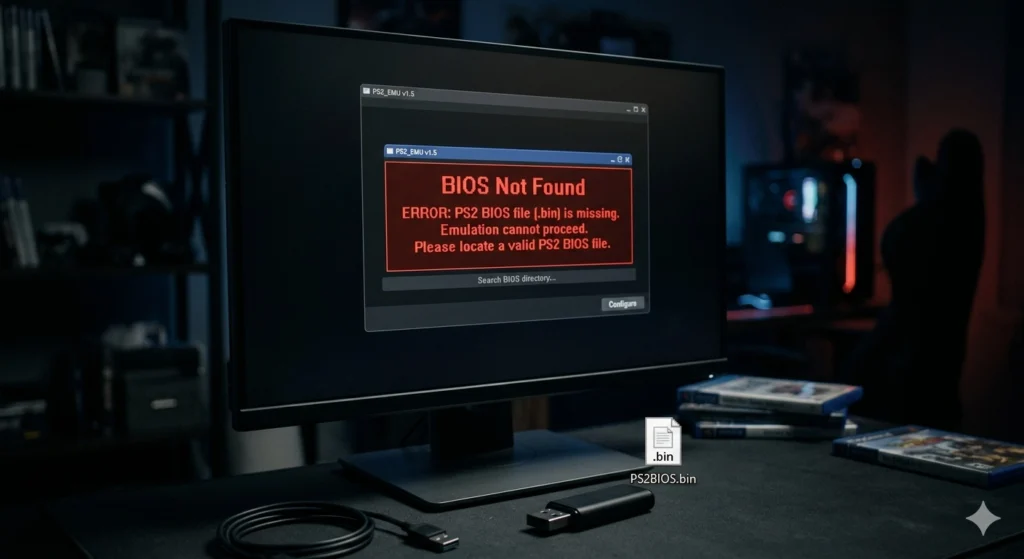
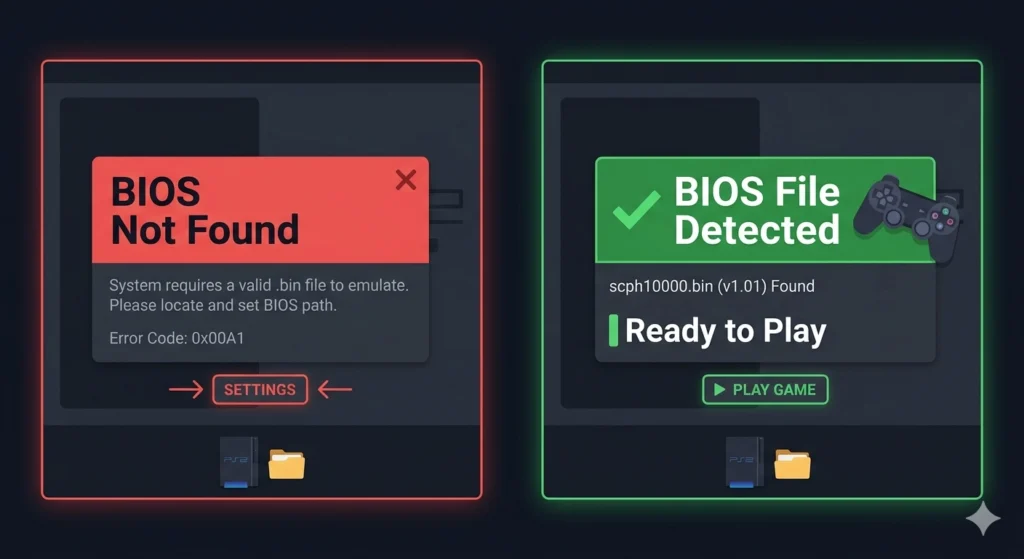
"BIOS Not Found" on PCSX2
The most common cause is that the BIOS file is still inside a ZIP archive. The second most common cause is pointing PCSX2 to a folder that does not directly contain the .bin file.
Fix: Extract the ZIP fully. Open PCSX2, go to Settings > BIOS > Browse, and navigate to the folder that contains the .bin file directly. Confirm a version appears in the list before clicking Apply.
BIOS Not Detected in EmuDeck
If the BIOS Checker from EmuDeck says the PS2 BIOS is missing even though you have placed the file, it is almost certainly because the file is in a subfolder within the bios folder.
Solution: Put the .bin file in the root of the Emulation/bios folder. There should not be any folders between the bios folder and the .bin file.
RetroArch Shows Black Screen After Loading Game
This is almost always because the BIOS file is in the wrong folder, or the folder names are not in lowercase.
Solution: Ensure the path is system/pcsx2/bios/. Ensure the folder names are in lowercase. Restart RetroArch.
AetherSX2 Cannot Find BIOS File After Import
If you selected the file during setup, but it still shows as missing, the file may still be zipped.
Fix: Use ZArchiver to extract the ZIP first. Then go through the BIOS import step again and select the extracted .bin file.
BIOS File Shows in List but Games Still Will Not Load
This usually points to a region mismatch between the BIOS version and the game.
Fix: Check your game’s region (look at the ISO filename or the disc serial number on the game’s packaging). Switch to the BIOS version that matches. For USA games, use SCPH-39001 or SCPH-70012. For Japanese games, use SCPH-10000. For European games, use SCPH-50003 or SCPH-75004.
Linux BIOS Folder Not Visible
PCSX2's configuration folder on Linux is hidden by default. The path is ~/.config/PCSX2/bios/. In your file manager, press Ctrl + H to show hidden files, or navigate directly using the address bar.
Tips to Get the Best Performance After Setup
Installing the BIOS correctly is step one. These settings make a real difference once your emulator is running:
Use Fast Boot for everyday play
It cuts out the startup animation and loads games in seconds. Reserve Full Boot only for titles that need the BIOS memory card screen or fail to load on Fast Boot.It cuts out the startup animation and loads games in seconds. Reserve Full Boot only for titles that need the BIOS memory card screen or fail to load on Fast Boot.
Match your BIOS region to your game region
Even with Fast Boot enabled, a mismatched BIOS causes subtle issues on some games — wrong audio speed, display oddities, or failed saves. It takes five seconds to switch and it prevents a lot of headaches.
Keep all your BIOS files in one organized folder
Give it a clear name like “PS2 BIOS” and store all regional versions there. Point PCSX2 or EmuDeck to that single folder, and you will always have every version ready when you need it.
Switch your renderer to Vulkan
On both PCSX2 and AetherSX2, Vulkan outperforms OpenGL on the vast majority of modern hardware. If your system supports it, use Vulkan as your default.
Start at 2x internal resolution
4x looks sharper, but it demands real GPU power. Start at 2x and step up only if performance stays consistently smooth.
For Android: enable High Performance mode
Many Android phones throttle CPU and GPU speed under default power settings.
Frequently Asked Questions
Do I need a different BIOS file for each emulator?
No. The same .bin file works across PCSX2, AetherSX2, RetroArch, and EmuDeck. What changes between emulators is the folder path where you place that file.
Can I use one BIOS file for all PS2 games regardless of region?
Mostly yes, especially with Fast Boot enabled. The USA BIOS (SCPH-39001 or SCPH-70012) runs the majority of games without issues. Some region-locked titles require a matching regional BIOS to boot correctly.
How many BIOS files can I have installed at once?
As many as you want. Both PCSX2 and AetherSX2 let you store multiple regional versions in the BIOS folder and switch between them from the settings menu. Having all four regional versions installed at the same time is completely fine.
Do I need the .mec and .nvm files that came with my BIOS pack?
These are companion files that store console memory and calibration data. PCSX2 can use them but does not require them. The .bin file is the essential one. If your pack includes .mec and .nvm files, place them in the same BIOS folder alongside the .bin file.
My BIOS is in the right folder but PCSX2 still says it is missing. What now?
Three things to check in order: First, confirm the file is extracted (not still inside a ZIP). Second, go to Settings > BIOS in PCSX2, click Browse, and select the folder manually even if it already shows a path. Third, make sure no antivirus software quarantined the file during extraction.
Does AetherSX2 still work?
Yes. Development has been paused, but the app remains fully functional on Android devices. All setup steps in this guide apply to the current version.
What is the BIOS path on Steam Deck if I used an SD card with EmuDeck?
If you directed EmuDeck to your SD card during setup, the path will be on the card rather than internal storage. The structure remains the same: [SD card root]/Emulation/bios/. The same no-subfolders rule applies.